From the card to Lightroom, one match at a time

Minkrop is the part between the shoot and the delivery: it groups the bursts, crops on the action and straightens the horizon on the frames you keep. You decide; the tool does the repetitive work. Everything below is the real app.

Folder

from the card

Point it at the match

Put the card in the computer and open the folder with the match, or with the whole weekend. Minkrop reads the files and shows them as bursts and matches, so you don't hunt for where one ends and the next begins.

Your originals are only read. Whatever Minkrop makes is a new file, written to the export folder you choose.
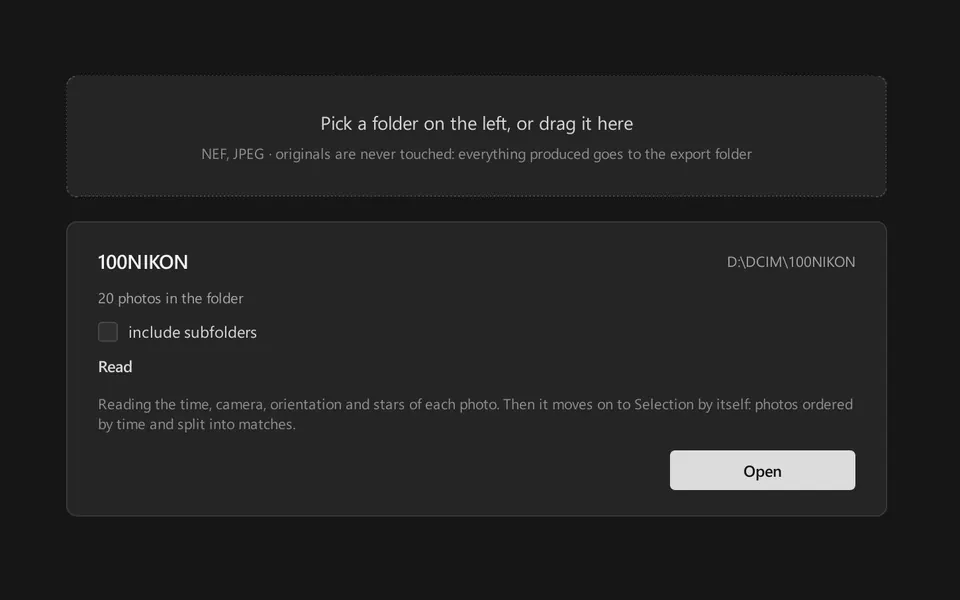
Minkrop's Folder step: the card's folder tree and a folder card showing 20 photos with an Open button.

Selection

3 ways to work

Choose how you want to work

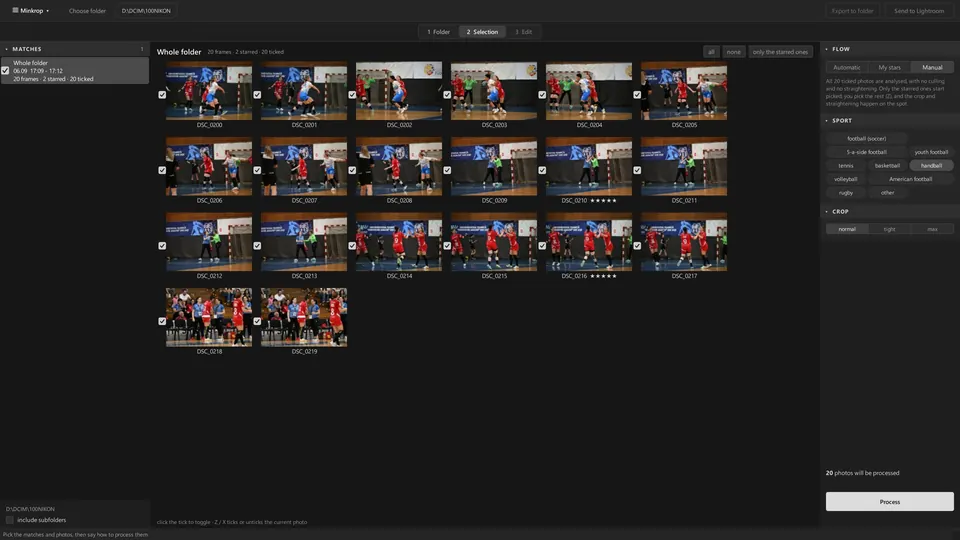
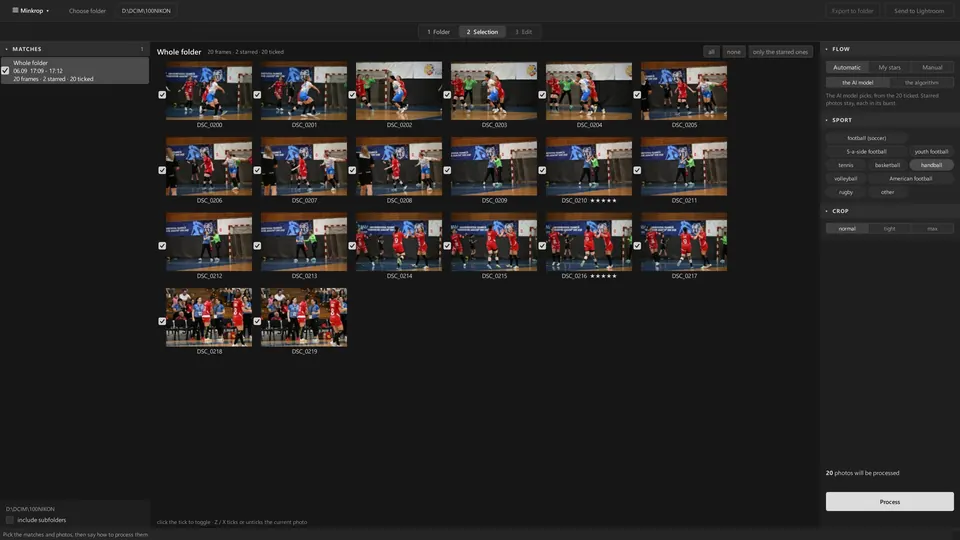
Every photographer picks differently, so there are three flows. The photos you already starred in camera always stay.

Automatic
Minkrop proposes which frames to keep from each burst. You review them.
My stars
You are the selection: the stars from your camera decide. Minkrop only crops and straightens them.
Manual
You pick everything in the editor. Minkrop crops and straightens each photo you chose.
Minkrop's Selection step with the Automatic flow, the sport, the crop setting and the Process button.
Minkrop's Selection step with the Manual flow: nothing is pre-selected, you pick in the editor.

Let it work

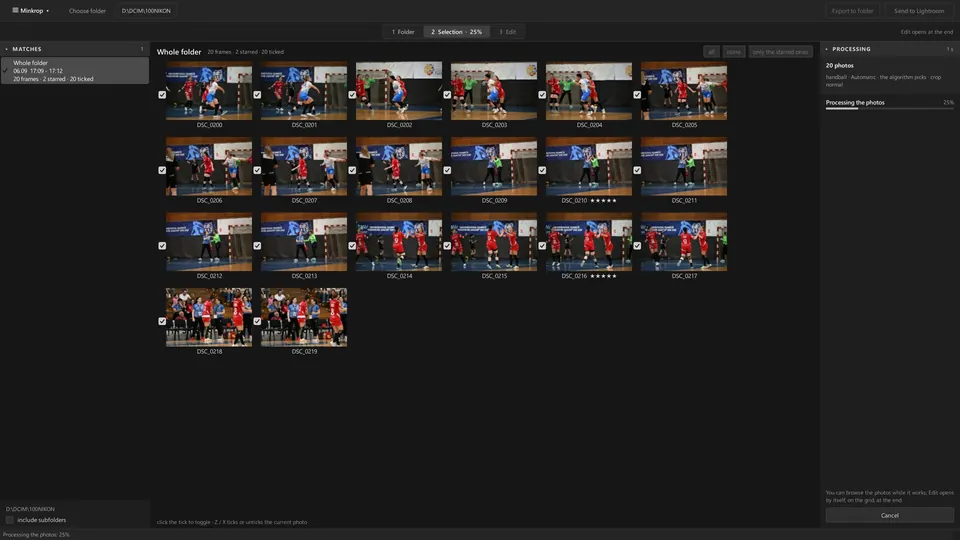
Minkrop goes through the photos, finds where the action is and prepares the crop and the angle for each frame you keep. Meanwhile you can do something else.

In Automatic, an AI model can help propose the frames from a burst. It is an assistant: every proposal can be changed.

The Processing panel at 25 percent, with frames getting a check mark as they finish.

Edit

you decide

Bursts and the pick

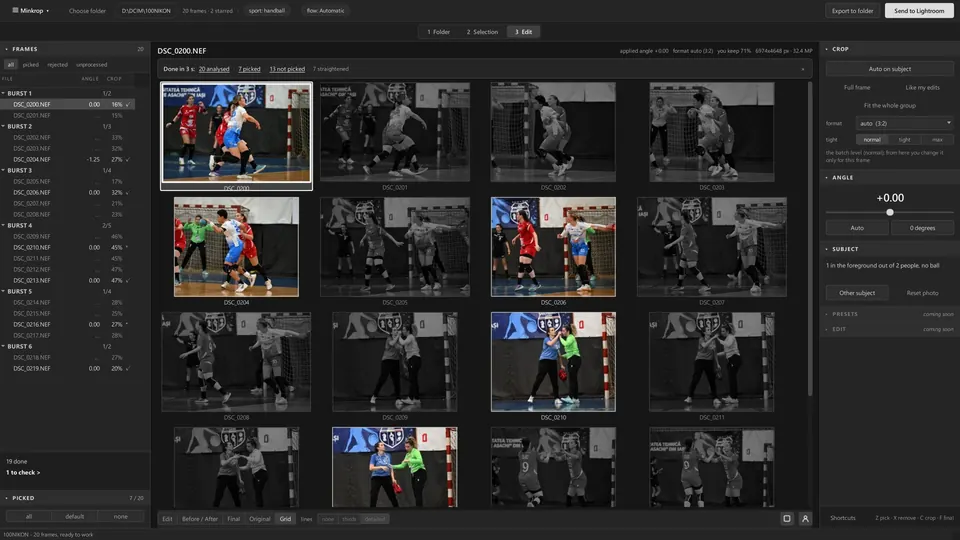
Frames come grouped in bursts. Picked frames stay in colour with an outline, the rest fall to black and white. In a burst you pick the frame you want, and the others step back.

The grid after processing: picked frames in colour with an outline, the others in black and white, and a status line with the counts.

Crop on the subject, on thirds

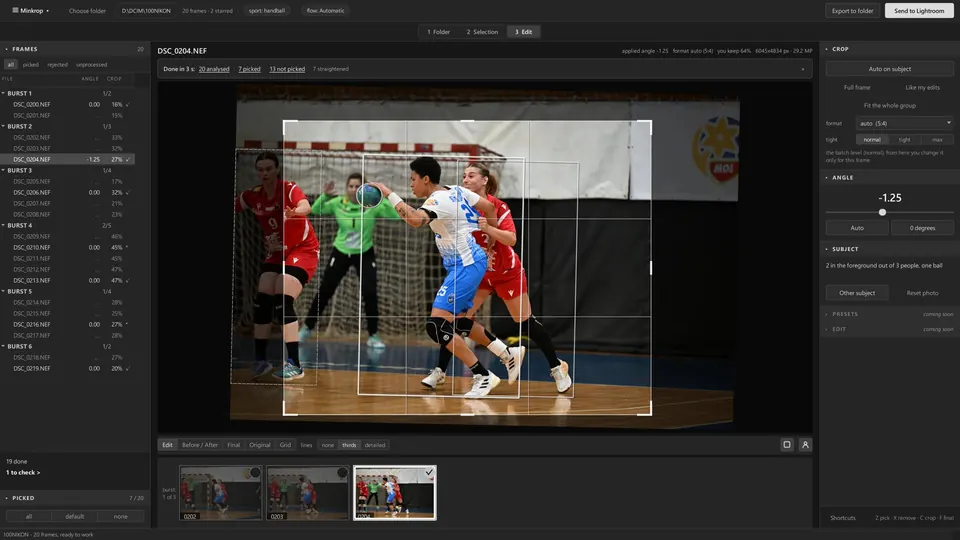
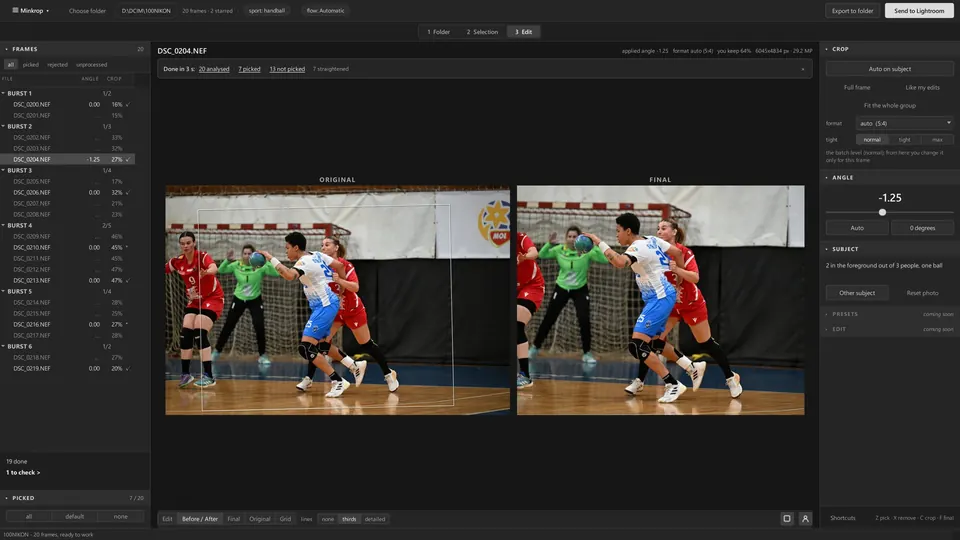
The crop follows the action and sits on the rule of thirds, with boxes for the subject and the other players. Choose how it frames: Auto on subject, Full frame, Like my edits, or Fit the whole group, and how tight: normal, tight or max.

Don't like it? Move the crop or change the angle. The last word is yours, on every photo.

The editor on a handball frame: the crop with the rule-of-thirds grid, boxes around the subject and the other players, the angle and the burst strip below.

Straighten, only on the photos you keep

The horizon is levelled only on the frames you picked, so no time goes on the ones you won't deliver. Before and After shows the original with the tilted crop next to the finished frame.

Before and After view: the original with the tilted crop outlined, next to the straightened and cropped result.

Export

new files only

RAW with .xmp, or cropped JPEG, or straight to Lightroom

Export the picked RAW files with an .xmp next to each, so the angle and the crop show up in Lightroom, or write cropped JPEGs. Before anything is written you see what is about to happen.

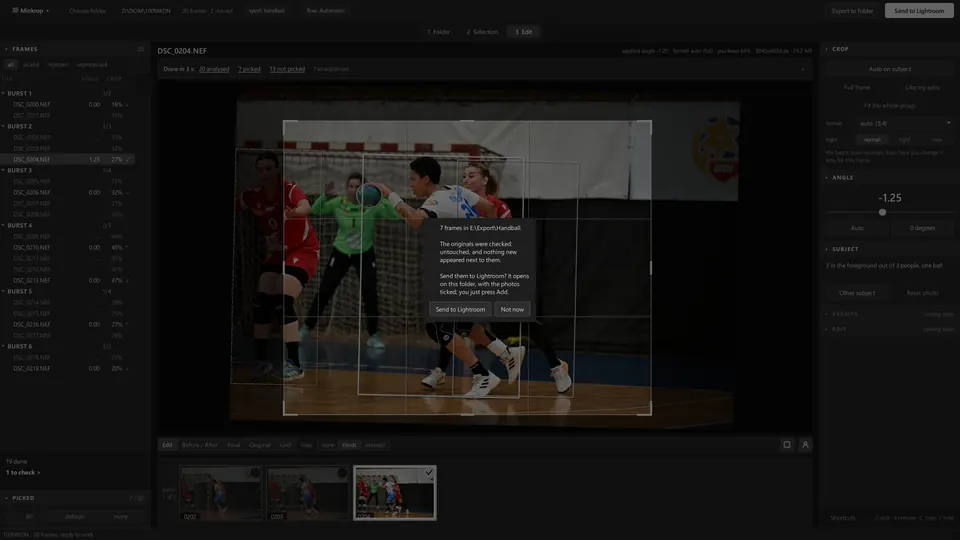
Send to Lightroom opens the result in Adobe Lightroom. Nothing new to learn: you carry on in the program you already use.

The end of an export: a message with the Send to Lightroom button over the dimmed Minkrop window.

Speed

measured on Ryzen 7 7800X3D + RTX 3060
  • 2,000 RAW photos analysed, framed and straightened · graphics card, no AI culling1 min 47 s
  • The same 2,000 photos · processor only3 min 11 s
  • 1,000 RAW photos · graphics card47 s
  • Straightening 2,000 photos28 s
  • One photo picked with AI · graphics card0.16 s
  • One photo picked with AI · processor0.62 s

Measured by us on a PC with an AMD Ryzen 7 7800X3D processor and an NVIDIA RTX 3060 graphics card. Your computer can differ: Settings › Speed measures it on your own photos.

On your computer

nothing leaves it

Minkrop runs on your computer, AI included. Your photos are not uploaded anywhere; the app talks to our server only to check your licence and look for updates.

Originals are never touched, and at the end Minkrop checks and tells you so. Works on Windows 10 and 11 and on macOS, in 9 languages.

See it on your own photos

15 days free, the full tool, no card.

See the plans